
There are lots of reasons disconnection issues can happen. Internet Service Providers (ISP) or firewall settings cause most issues blocking Poker8 from working properly.
Here are some simple steps you can follow for smoother play:
- Shutdown and restart your device - go for a full shut down and restart rather than just a restart. We want everything powered down.
- Turn off and on your internet device - after turning it off, please wait 30 seconds before turning it back on to allow a full disconnection.
- Make sure Poker8 is allowed by your Firewall. Check your firewall settings and enable Poker8 as if it is not connected, it may interfere with the program.
- Try disabling your Antivirus Software for a short while playing on Poker8, see if this is interfering. We don't recommend leaving this off for long and if it is interfering, you can just turn it off while playing and switch it back on.
If you get disconnected from a game or continue having problems establishing a network connection after following these steps, you will need to restart Poker8.
🔌 How to Restart Poker8
Windows
If clicking the “X” is not closing Poker8, please open the Task Manager and stop Poker8 manually.
To do that:
- Press “Ctrl” + “Alt” + “Delete” at the same time. This will open a menu with multiple choices, select “Task Manager”.
- The Task Manager application will open and show a list of running programs.
- Select Poker8 with left click and press “End task”.
- The client will shut down.
- Now you can open Poker8 again and resume playing.
Mac
To close Poker8 on your Mac normally, choose Quit from Poker8's menu in the menu bar. Or press Command-Q.
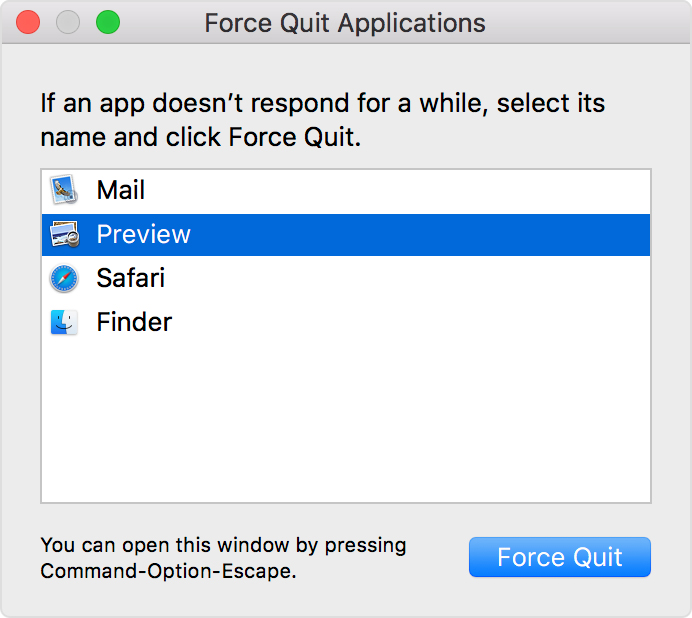
If Poker8 won't close, follow these steps to force Poker8 to close.

- Press these three keys together: Option, Command, Esc (Escape).
- A Force Quit window will open. Select the app you want to close, then click Force Quit.
If the problem persists, we can now try to uninstall the program and reinstall it.
🔨How to Uninstall Poker8
Windows
- Click the start button or press the “Windows” key.
- Now click on Settings > Apps > Apps & Features.
- From the list of apps select “Poker8”, click on the three dots on the right, and now click “Uninstall”.
- After Poker8 is uninstalled, you need to reboot your computer.
Mac
- Locate the app in the Finder. Most apps are in your Applications folder, which you can open by clicking Applications in the sidebar of any Finder window. Or use Spotlight to find the app, then press and hold the Command (⌘) key while double-clicking the app in Spotlight.
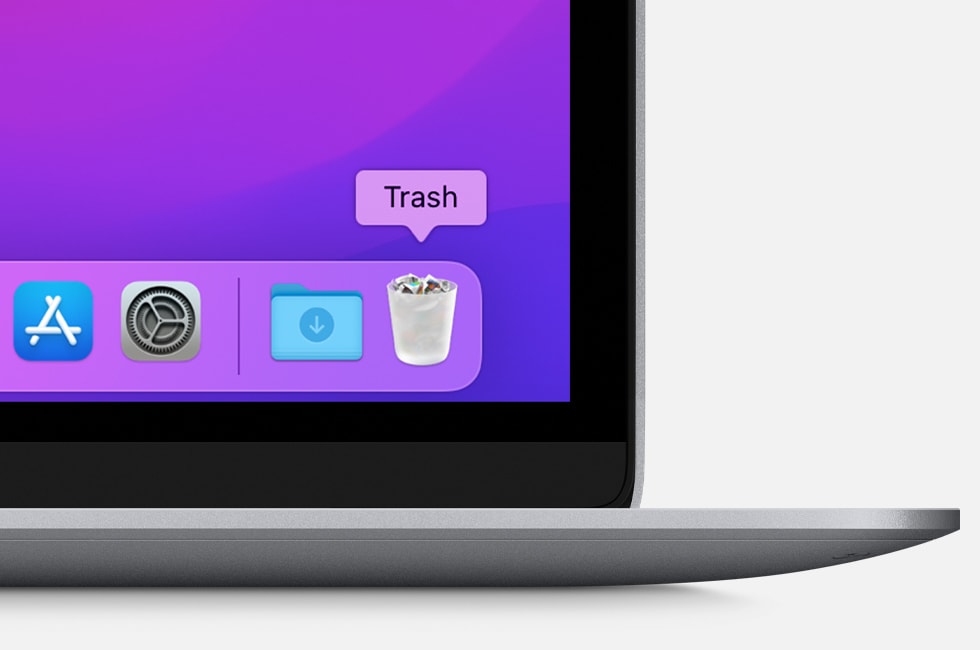
- Drag the app to the Trash, or select the app and choose File > Move to Trash.
- If you're asked for a user name and password, enter the name and password of an administrator account on your Mac. This is probably the name and password you use to log in to your Mac.
- To delete the app, choose Finder > Empty Trash.
💻 How to Reinstall Poker8
Go to our website, click the “Download” button. After the download is finished, open the installer and follow the steps to install the poker client.
If this doesn't help, kindly contact our Support team via support@poker8.io and provide the following:
- Log Files (get them by clicking the 3 dots at the bottom of the desktop Game client). You can add the Log files as an attachment;
- A screenshot of what you see;
- What operating system are you using? (e.g., Windows 10, MacOS Ventura) - this is usually found by searching for ‘About’ on your PC;
- When did you experience the issue for the first time?
- What steps did you follow before you met the issue? (buttons you clicked, changes you made to your account, games you played, etc.);
- When was the last time you could successfully perform the task?
- Have you installed any new apps? E.g., Antivirus, new browsers, new internet service.
These details will help our technical team investigate and fix the issue quicker.
Try to uninstall/remove the Poker8 app from your device and reinstall it from here.
If this doesn't help, kindly contact our Support team via support@poker8.io and provide the following:
- A screenshot of what you see;
- As many details as possible (operating system and version, when the issue started, specify if you installed any new apps recently).
This information will help our technical team investigate and fix the issue quicker.
Comments
0 comments
Please sign in to leave a comment.